Facilities on the einvoice1.gst.gov.in
What is einvoice1.gst.gov.in?
einvoice1.gst.gov.in is the primary website for generating Invoice Reference Numbers (IRN) for e-invoices. Taxpayers with aggregate turnover above Rs 500 crore in 2019-20 began using e-invoices from 1st October 2020. Later it was extended to taxpayers with turnover ranging from Rs.50 crore to Rs.500 crore as well. The website einvoice1.gst.gov.in makes it possible for such taxpayers to register, bulk upload invoices to obtain IRN, track e-invoices, etc.
Facilities on the einvoice1.gst.gov.in
The following facilities or functions are available on the e-invoice portal:
- Registration of taxpayers into the e-invoicing system
- Generation of unique Invoice Reference Number (IRN) using the bulk upload option
- Tracking/verifying e-invoice details using IRN
- Search for any taxpayer, Pincode, goods or services, signed e-invoice, or master codes.
- Cancellation of IRN
- Printing e-invoices
- Generating MIS reports
- Authorizing a sub-user to generate IRN, cancel IRN, or generate reports relating to IRN.
Contents of the einvoice1.gst.gov.in website Explained
Before logging in
- Upon accessing the homepage of the e-invoice website, a section appears on the right-hand side known as ‘Latest Updates’. This displays the latest developments in the implementation along with the new features of the e-invoicing portal.
- The ‘Laws’ section contains various rules- Rule 48, forms- INV-01, list of GST notifications, and circulars if any relating to e-invoicing as per GST law.
- The ‘Help’ section provides user manuals for managing IRN, FAQs on the same, and tools for bulk generation of IRN.
- A ‘Search’ section where the following information can be looked up:
- Taxpayer details by entering their GSTIN.
- Pincode search to know the name of the state.
- Product and services details by entering the HSN Code.
- Verification of the signature and invoice details by uploading JSON signed file of the e-invoice.
- Status of e-invoice of the taxpayer by entering the GSTIN.
- List of GST Suvidha Providers
- Master codes for states, HSN, Countries, port, currency, and UQC.
- The ‘Downloads’ section contains the following facilities:
- QR code verifies app will be provided.
- Sample signed e-invoice JSON.
- A brief document on QR codes will be made available.
- FAQs on QR codes will also be made available.
- The public key for e-invoice for the respective periods of IRN generation.
- The ‘Contact Us' section contains an e-mail address and phone number for support.
- The ‘Registration’ section for first-time registration onto the website to use the e-invoicing system. The registration facility is available for different types of users such as SMS-based, mobile-based, GSP-based, API-based, etc. The mode of generation of e-invoice is available on the basis of the selection made at the registration.
- The ‘Login’ section to enter credentials after registration is successful.

After logging in
This is what the main menu screen looks like after successful login:
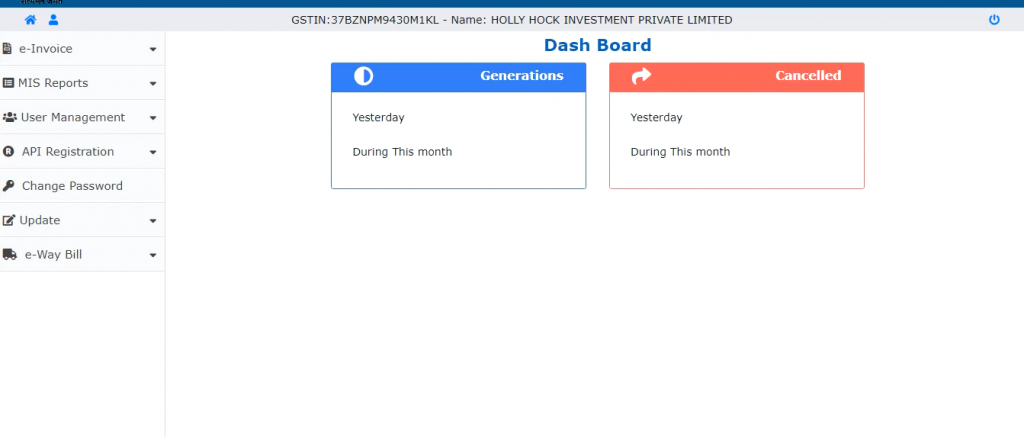
From the above it is observed that there are five main options available:
- E-invoice
- MIS Reports
- User Management
- API Registration
- Change Password
- Update
- E-Way Bill
E-invoice
The e-invoice menu contains the following sub-menus:
- Bulk Upload: Rather than uploading details of each invoice one by one, an option has also been made available to upload multiple invoices in one single JSON file. The JSON can be generated by using the bulk converter tool that is also available on the website. Every invoice contained in the JSON will be assigned separate IRNs.
- Cancel IRN: Where any mistake has been made in uploading details of an invoice, the generated IRN can also be canceled within 24 hours of generating the same. Note that the IRN cannot be deleted and hence even the IRN of a canceled invoice remains unique. The invoice that is to be canceled can be found by entering the acknowledgment number.
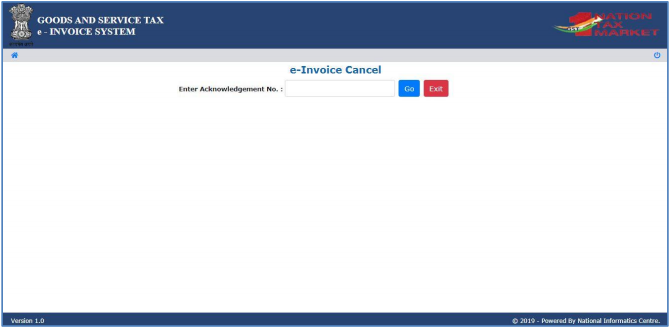
Upon successful cancellation, the system displays the message ‘e-invoice canceled successfully!!’.

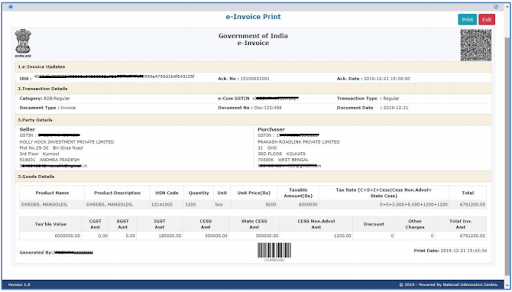
- Print e-invoice: The IRN/e-invoice number of the invoice that is required needs to be entered.

A sample of the print can be seen below:
MIS Reports
This option can be used to generate an MIS report. A list of invoices uploaded would be provided based on selected parameters and selected dates. This list can also be exported in excel format using the ‘Export to Excel’ tab.
User Management
A large business entity may have different people performing different roles in relation to invoices in an organization. This portal allows controlling access of such users depending on their role.
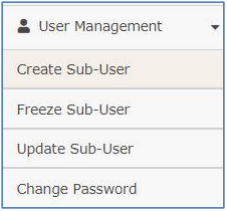
As can be seen from the above figure, the various options provided are ‘Create Sub-User’, ‘Freeze Sub-User’, ‘Update Sub-User’ and ‘Change Password’. Each such sub-user will be given the following type of permissions:
- Generate Invoice Reference Number
- Cancel Invoice Reference Number
- Report Generation of Invoice Reference Number

The sub-users would each be provided separate login credentials with their user ID being the same as that of the main user, except for the addition of a suffix.
API Registration
In case the taxpayer chooses to directly integrate his ERP system or through GSP with the e-Invoicing system, click on the ‘API Registration’ option > IP whitelisting to register your IP address with the portal.

Thereafter, select ‘Create API User’ under the user Credentials option to register the GSTIN for the API interface and set the login credentials. In case the sister concern of your GSTIN has already registered for API interface then the details thereof will be displayed. Enter the client ID and client secret to set the login credentials for your concern.
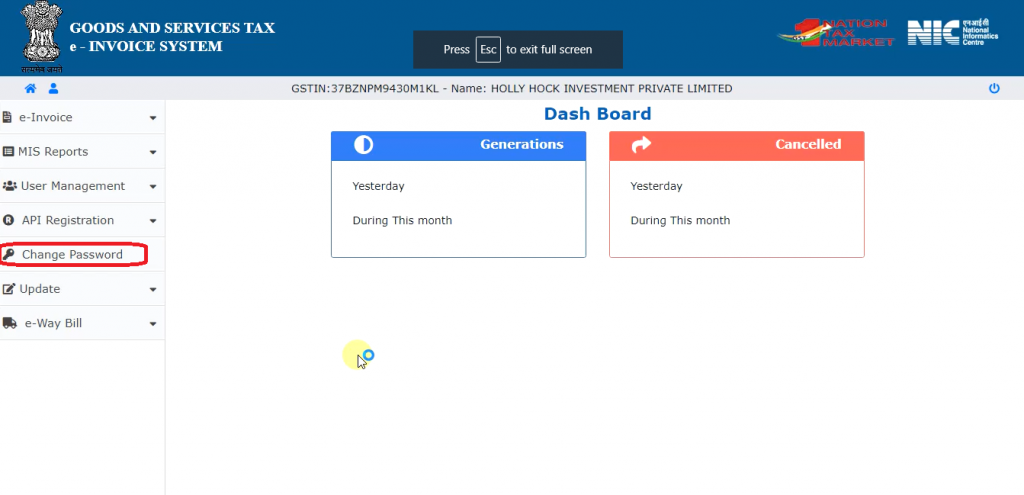
Change Password
The user can frequently change the password using this option.
Update
It may be a tedious task to enter business details every time an e-invoice is prepared. Hence, it is possible to use this option to auto-populate certain fields while creating the e-invoice by pulling the data from the GST common portal.

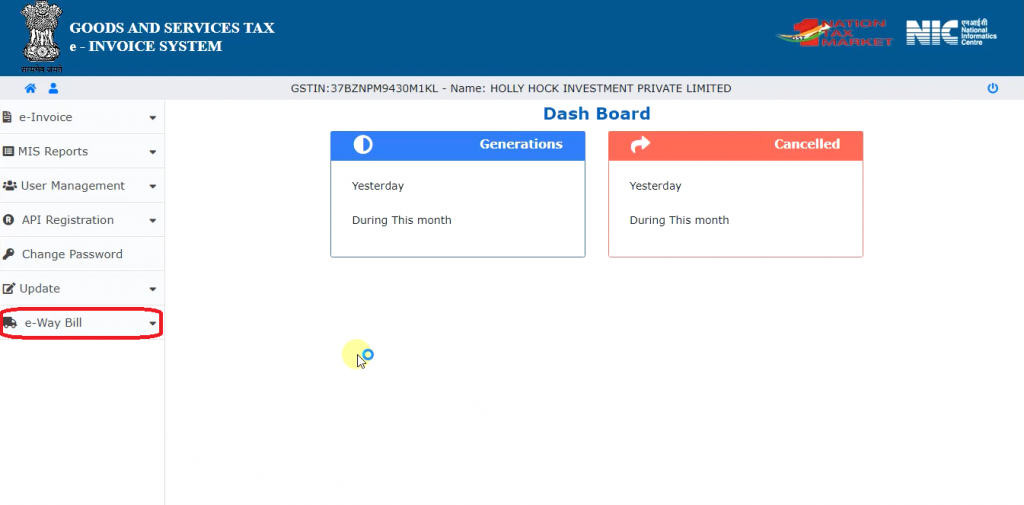
E-Way Bill
The ‘e-way bill’ option can be used to fill up Part A of the e-way bill with only vehicle number remaining to be entered in Part B.
CA-Article at TAXAJ
TAXAJ is a consortium of CA, CS, Advocates & Professionals from specific fields to provide you with a One-Stop Solution for all your Business, Financial, Taxation & Legal Matters under One Roof. Some of them are: Launch Your Start-Up Company/Business, Trademark & Brand Registration, Digital Marketing, E-Stamp Paper Online, Closure of Business, Legal Services, Payroll Services, etc. For any further queries related to this or anything else visits TAXAJ
Watch all the Informational Videos here: YouTube Channel
TAXAJ Corporate Services LLP
Address: 1/11, 1st Floor, Sulahkul Vihar, Old Palam Road, Dwarka, Delhi-110078
Related Articles
What are the GST E Invoicing Applicability and requirements?
Who must Generate E-Invoices? Turnover limit Phase Applicable to taxpayers having an aggregate turnover of more than Applicable date Notification number I Rs 500 crore 01.10.2020 61/2020 – Central Tax and 70/2020 – Central Tax II Rs 100 crore ...GST Applicability & Tax Rate on Biotechnology
The rationalization of the goods and services tax (GST) rates has dealt a severe blow to Indian scientists. As the tax rates on scientific and technical instruments to public research institutes went up from 5% to “applicable rates,” scientists will ...LUT (Letter of Undertaking) in GST
Letter of Undertaking - Brief Description In order to give boost to exports, the government provided certain facilities to the exporters under GST. As per section 16 of the IGST Act, 2017, export of goods and services is treated as Zero Rated Supply. ...GST Applicability & Tax Rates on Entertainment
Introduction The Goods and Services Tax (GST) regime, implemented in India in July 2017, aimed to streamline the taxation system by subsuming various indirect taxes into a single tax structure. The entertainment industry, encompassing cinema, ...Digital Signature For GST registration in India
The GST Common Portal will allow businesses to designate employees as authorized signatories, which enables them to sign and file returns on behalf of the business, as well as to make payments online. Any person registered on the Authorized Person ...